WordPress MySQL Optimization 2025
What Is WordPress MySQL Optimization?
The wordpress mysql optimization involves fine-tuning the MySQL database that powers a WordPress website to enhance performance, reduce server load, and improve user experience by optimizing queries, indexing, and WordPress database structure. In 2025, with search engines prioritizing speed and reliability, efficient database management is critical for maintaining a competitive edge in SEO and user engagement. By streamlining WordPress’s interaction with its MySQL database, site owners can ensure faster page loading times and improved scalability. The benefits of WordPress MySQL optimization include:
- Accelerating page load times by reducing query execution delays and improving Core Web Vitals scores.
- Enhancing SEO rankings through faster, more reliable website performance.
- Reducing server resource usage allows sites to handle higher traffic volumes.
- Enhancing user experience through faster content delivery and reduced bounce rates.
- Supporting scalability for growing websites without website performance degradation.
- Minimizing downtime risks by maintaining a lean, efficient WordPress database structure.
Why WordPress MySQL Optimization is Vital
In the relentless pursuit of website speed, we often focus on visible elements, such as compressing images, minifying JavaScript, and leveraging Content Delivery Networks (CDNs). While crucial, these are only part of the story. Lurking beneath the surface, the actual engine of your WordPress website—its MySQL database—can become its most significant performance bottleneck. A slow database means a slow website, simply put.
Consider this: a site that loads in one second boasts a conversion rate three times higher than a site that takes five seconds. (WP Engine, 2023). Much of that initial delay, measured as Time to First Byte (TTFB), originates from one place: the time it takes your server to process the request, query the database, and send back the first piece of information. If your WordPress database is sluggish, your TTFB will be high, and you’re losing users before your beautiful design even has a chance to load.
The problem is insidious. When your WordPress website is new, the database is lean and responsive. But as you add content, install plugins, and attract users, it begins to accumulate digital clutter. Post revisions, expired transient options, spam comments, and orphaned data from uninstalled plugins create a bloated, fragmented WordPress database. This forces MySQL to work harder and take longer to find the information it needs, resulting in low queries, a sluggish admin panel, and a frustrating experience for your visitors.
This guide is your definitive roadmap to reclaiming that speed. We will dissect every layer of WordPress MySQL optimization, providing a complete, step-by-step methodology for everyone from beginners to advanced developers. You will learn to diagnose issues, execute precise fixes, and implement a maintenance strategy to ensure your database remains a high-performance asset for your website in 2025 and beyond.
The WordPress Request Lifecycle: Identifying the Bottleneck
To understand why database optimization is so critical, let’s visualize a standard page request:
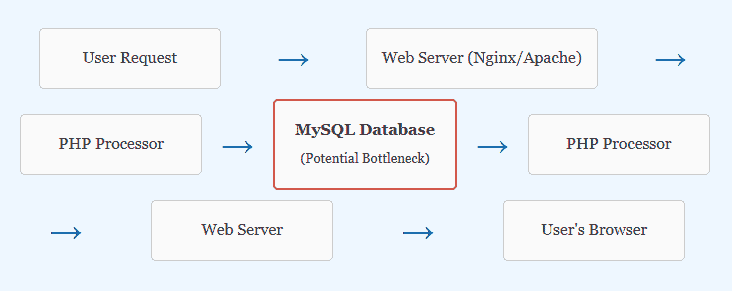
Every dynamic page load involves one or more round-trips to the MySQL database. When the database optimization is slow, it creates a traffic jam at the most critical point in the process, delaying everything that follows.
Part 1: Understanding the WordPress Website Database & Key Technologies
Before diving into optimization techniques, it’s essential to build a foundational understanding of what we’re working with. This section demystifies the WordPress database, clarifies the underlying technologies, and explains precisely how performance issues arise.
The Core Structure: A Look Inside Your Database
A standard WordPress installation creates a set of 12 core tables in your WordPress database, each designed to store a specific type of data. While you don’t need to memorize every column, understanding the role of the most performance-critical tables is key to effective optimization. (WordPress Codex)
- wp_posts: This is the heart of your content. It stores not just your blog WordPress posts, but also pages, menu items, attachments, and custom post types. Its size grows directly in proportion to the amount of content on your site.
- wp_postmeta: This is arguably the most frequent source of performance problems. It stores metadata for your posts using a key-value structure (e.g., a custom field from a plugin). Inefficient queries on this table, known as `meta_query`, are a notorious cause of slow-loading pages, especially as the table grows with thousands or millions of rows. (Advanced Custom Fields).
- wp_options: This table stores all your site-wide settings, including the site title, active plugins, and theme configurations. A single column in this table, autoload, is a significant performance factor. When set to ‘yes’, the data in that row is loaded on every single page load, whether it’s needed or not. Bloated autoloaded data is a common and severe performance bottleneck.
- wp_users & wp_usermeta: These tables store your user profiles and their associated metadata, respectively.
- wp_comments & wp_commentmeta: These hold all comments and their metadata. A site with a large number of comments, especially spam, can experience performance degradation due to these tables.
The prefix wp_ is the default, but it can be changed for security purposes. Throughout this guide, we will use the default prefix for clarity.
The Technology: MySQL vs. MariaDB in 2025
WordPress is built to run on a relational database management system (RDBMS). For its entire history, this has meant MySQL. However, an increasingly popular and influential alternative is MariaDB. (wpDataTables, 2024).
MariaDB was created by the original developers of MySQL as a community-driven fork, ensuring it remains free and open-source. It is designed as a “drop-in replacement” for MySQL, meaning you can switch from MySQL to MariaDB without changing any of your WordPress code. For 2025, many performance-focused hosting providers offer MariaDB by default due to its recognized advantages.
| MySQL | MariaDB | Recommendation for 2025 | |
|---|---|---|---|
| Origin | The original open-source RDBMS, now owned by Oracle. | A community-developed fork of MySQL, led by its original creators. | Open-source advocates often prefer MariaDB’s community-driven model. |
| Compatibility | The long-standing standard for WordPress. WordPress requires version 5.7 or greater. (WordPress Performance Team) | Designed as a seamless, drop-in replacement for MySQL. WordPress requires version 10.3 or greater. | Both are fully supported. If you have a choice, MariaDB is a safe and often beneficial upgrade. |
| Performance | Excellent, robust, and the industry standard for decades. | Benchmarks consistently show MariaDB is faster in many WordPress-related workloads, especially in query execution and handling complex views. (BloggerPilot, 2025) | Choose MariaDB if your host offers it. The performance edge is a tangible benefit. |
| Current Version | MySQL 8.0 is the current stable release, offering significant performance and security improvements over the older 5.7. (WP Engine, 2023) | MariaDB has a more rapid release cycle, with versions such as 10.6, 10.11, and newer ones available. | Ensure you are on a recent, actively supported version of either database backup for security and performance. |
The Silent Database Performance Killer: Understanding Database Size Bloat
Database bloat is the gradual accumulation of unnecessary data that clutters your tables and slows down query execution. It’s a natural consequence of using WordPress, but if left unchecked, it can cripple your site’s performance. (Pressidium, 2025). Here are the primary culprits:
- Post Revisions: Every time you save a draft, WordPress creates a complete copy of that post. A post with 20 revisions means 20 extra rows in your wp_posts table that are rarely used.
- Auto-Drafts: WordPress automatically saves drafts as you write, which can leave behind orphaned drafts if not correctly cleaned up.
- Spam and Trashed Comments: These aren’t deleted immediately but are moved to a ‘spam’ or ‘trash’ status, continuing to occupy space in your wp_comments table.
- Expired Transients: Transients are a form of temporary caching in the database. Plugins and themes use them to store temporary data. Although they have an expiration date, they sometimes fail to delete themselves, resulting in thousands of expired rows remaining in the wp_options table.
- Orphaned Metadata: When you delete a plugin, post, or user, the associated metadata in tables like wp_postmeta or wp_usermeta is not always removed. This “orphaned” data has no parent and serves no purpose other than to slow down searches.
- Plugin and Theme Data: Many WordPress plugins and themes store their settings in the wp_options table. When you delete them, they often don’t clean up after themselves, leaving behind useless rows.
Now that we understand the structure, technology, and common problems, we can proceed to the practical steps of optimizing this bloat and restoring our database to peak efficiency.
Part 2: Foundational Optimization: Database Cleanup & Maintenance
This is where we roll up our sleeves. The single most impactful action any WordPress website owner can take is to perform regular database cleanup. These tasks are practical, have a high return on investment for performance, and can be performed by users of all skill levels. For each task, we’ll provide three methods: the easy way (using a WordPress plugin), the intermediate way (using WP-CLI for those with command-line access), and the advanced way (running a direct SQL query).
A Word of Caution: Before running any direct database operations, especially deletions, always create a full backup of your website and database. Use a reliable backup plugin like Duplicator or your host’s backup feature. (WPBeginner).
Task 1: Taming Post Revisions
Post revisions are the most significant contributor to a bloated wp_posts table. While useful, storing dozens of revisions for every post is unnecessary and a significant performance drain.
- Easy (Plugin): Utilize a WordPress plugin such as WP-Optimize or Advanced Database Cleaner. They provide a simple one-click button to “Clean all post revisions.”
- Intermediate (WP-CLI): If you have SSH access, WP-CLI is the fastest way to do this.
# This command lists all post IDs of the 'revision' type and passes them to the delete command. wp post delete $(wp post list --post_type='revision' --format=ids) --force - Advanced (SQL): You can run this query directly in a tool like phpMyAdmin.
-- Deletes all rows from the wp_posts table where the post_type is 'revision'.
DELETE FROM wp_posts WHERE post_type = 'revision';
Task 2: Clearing Transient Caches
Transients are temporary options that can clutter your wp_options table if not adequately managed by WordPress plugins and themes.
- Easy (Plugin): Both Optimize and WP-Sweep have options to clear expired or all transients.
- Intermediate (WP-CLI): WP-CLI has a dedicated command for managing transients.
# Deletes all transients. Use --expired to only delete expired ones. wp transient delete --all - Advanced (SQL): Transients are stored in the wp_options table with specific prefixes.
-- Deletes all transient records from the wp_options table.
DELETE FROM wp_options WHERE option_name LIKE ('%\_transient\_%');
Task 3: Eradicating Spam & Trashed Comments
Letting spam and trashed comments accumulate adds thousands of useless rows to your wp_comments and wp_commentmeta tables.
- Easy (Plugin): WP-Optimize provides a simple button to “Clean all spam comments” and “Clean all trashed comments.”
- Intermediate (WP-CLI):
# Delete all comments marked as spam wp comment delete $(wp comment list --status=spam --format=ids) --force # Delete all comments in the trash wp comment delete $(wp comment list --status=trash --format=ids) --force - Advanced (SQL):
-- Deletes all comments marked as spam.
DELETE FROM wp_comments WHERE comment_approved = 'spam';

-- Deletes all comments marked as trash.
DELETE FROM wp_comments WHERE comment_approved = 'trash';
Task 4: Hunting Down Orphaned Metadata
This is a more advanced cleanup task. Orphaned metadata refers to data left behind from posts, comments, or users that are no longer in existence. It’s pure waste.
- Easy (Plugin): This is where plugins like Advanced Database Cleaner and WP-Sweep excel, as they are specifically designed to safely find and remove orphaned items.
- Intermediate (WP-CLI): The WP-Sweep plugin integrates with WP-CLI, allowing you to run its cleanup functions from the command line.
# Requires the WP-Sweep plugin to be installed. wp sweep orphaned_postmeta wp sweep orphaned_commentmeta wp sweep orphaned_usermeta - Advanced (SQL): Finding orphaned data requires a more complex query using a LEFT JOIN. This query finds postmeta entries that don’t have a corresponding post in the wp_posts table.
-- Selects orphaned post meta for review before deleting.
SELECT pm.* FROM wp_postmeta pm
LEFT JOIN wp_posts wp ON wp.ID = pm.post_id
WHERE wp.ID IS NULL;

-- To delete the orphaned post meta (use with extreme caution):
DELETE pm FROM wp_postmeta pm
LEFT JOIN wp_posts wp ON wp.ID = pm.post_id
WHERE wp.ID IS NULL;
Task 5: Optimizing Database Tables
After deleting a large amount of data, your database tables can become fragmented, resulting in unused space. Optimizing tables is similar to defragmenting a hard drive; it reclaims unused space and can improve data access performance. (WP Engine).
It’s essential to note that for modern WordPress sites using the InnoDB storage engine (which is the default), the OPTIMIZE TABLE command operates differently than it did for the older MyISAM engine. For InnoDB, it triggers a table rebuild and analysis (`RECREATE + ANALYZE`), which still achieves the goal of defragmenting the data and updating index statistics. (DigitalOcean Community).
- Easy (Plugin): WP-Optimize’s main feature is a large button to “Optimize database tables.”
- Intermediate (WP-CLI):
# This command will run OPTIMIZE TABLE on all tables in the WordPress database. wp db optimize - Advanced (SQL): You can specify which tables to optimize. It’s good practice to optimize tables you’ve heavily modified, like wp_posts, wp_postmeta, and wp_options
OPTIMIZE TABLE wp_posts, wp_postmeta, wp_options, wp_comments, wp_commentmeta;
Automating the Cleanup to Improve Performance
Database optimization is not a one-time task. To prevent bloat from accumulating again, you must perform these cleanups on a regular basis. The most effective way to achieve this is through automation.
Plugins like WP-Optimize and Advanced Database Cleaner Pro offer powerful scheduling features. You can set them to run automatically on a weekly or monthly basis, ensuring your database remains lean and fast without any manual intervention. This “set it and forget it” approach is fundamental to long-term database health. (NitroPack, 2025).
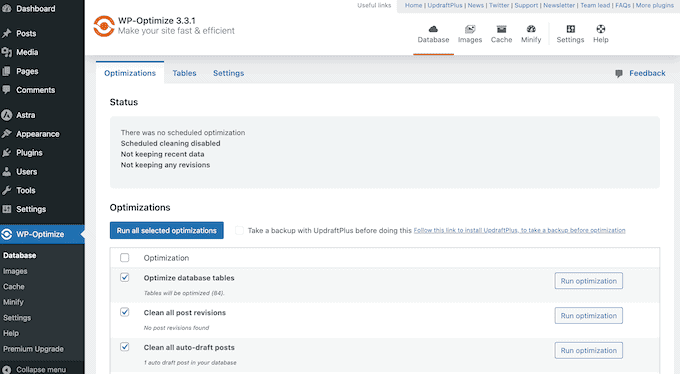
The WP-Optimize plugin provides a user-friendly interface to select and run various database cleanup tasks, with options for scheduling automatic optimizations.
Part 3: Advanced Query Optimization: Making Your Code Faster
While database cleanup is essential hygiene, it doesn’t fix the root cause of many performance issues: inefficient SQL queries generated by themes and plugins. A single poorly written query can bring a high-traffic site to its knees. This section provides a deep dive for developers and advanced users on how to identify, analyze, and resolve performance-killing queries.
Step 1: Identify Slow Queries with Query Monitor
You can’t fix what you can’t find. The first and most critical step is to identify which queries are slowing down your site. The undisputed champion for this task is the Query Monitor plugin. It’s a developer’s best friend, providing a detailed breakdown of every database query executed on a page load.
After installing and activating Query Monitor, a new menu will appear in your WordPress admin bar. When you visit a page on your site, you can click this menu and navigate to the “Queries” panel. Here, you should look for:
- Queries with High Time: The plugin highlights queries that take a long time to execute (e.g., > 0.5ms). These are your primary targets.
- Queries by Component: You can filter queries to see which ones are coming from a specific plugin or your theme. This helps pinpoint the source of the problem.
- Duplicate Queries: The plugin flags instances where the same query is run multiple times on a single page load, indicating inefficient code.
Once you’ve identified a slow query, your next step is to understand why it’s slow.
Step 2: Analyze Queries with EXPLAIN
EXPLAIN is a powerful MySQL command that you prepend to a SELECT query. Instead of running the query, MySQL returns a report on how it plans to execute it. This report is the key to understanding inefficiencies.
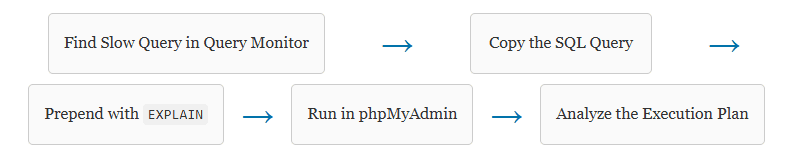
When you run an EXPLAIN query, you’ll get a table with several columns. Pay close attention to these: Type.
- e: This describes how MySQL joins the tables. You want to see values like ‘ref’, ‘range’, or ‘index’. The worst value is ALL, which indicates a “full table scan”—MySQL is reading every single row in the table to find a match. This is highly inefficient on large tables.
- possible_keys: Shows which indexes MySQL could potentially use. Keyy: Shows the actual index MySQL decided to use. If this is NULL, it’s a major red flag that no index is being used.
- Rows: An estimate of how many rows MySQL must examine to execute the query. A very high number here, especially when you only expect a few results, indicates a problem.
- Extra: This column provides additional information. Watch out for “Using filesort” and “Using temporary,” which indicate that MySQL must create temporary tables on disk to sort the results—a very slow operation. (WordPress VIP Documentation).
Step 3: Implement Strategic Indexing
An index is a data structure that improves the speed of data retrieval operations on a database table. Think of it like the index at the back of a book: instead of reading the whole book to find a topic, you look it up in the index and go directly to the right page. Indexing is often the single most effective solution for fixing queries. (Kinsta, 2024).
The wp_postmeta Problem
As mentioned earlier, the wp_postmeta table is a common bottleneck. This is because the meta_value column, which stores the actual custom field data, is a longtext type. By default, MySQL cannot effectively create a complete index on such a large column. When you run a WP_Query with a meta_query that filters by meta_value, MySQL often has to perform a slow full table scan.
The Solution: A Composite Index
You can dramatically speed up these queries by adding a custom composite index on the meta_key column and the first part of the meta_value column. This allows MySQL to quickly filter by the key and then the beginning of the value.
Code Block: Adding a Postmeta Index
You can run this SQL command in phpMyAdmin to create a powerful index on your wp_postmeta table. The (100) tells MySQL to only index the first 100 characters of the meta_value, which is usually sufficient for filtering and keeps the index size manageable.
CREATE INDEX idx_postmeta_key_value ON wp_postmeta (meta_key, meta_value(100));The impact of adding a proper index can be staggering. In tests on large databases, query times can decrease by over 90%, transforming a query that takes seconds into one that takes milliseconds.
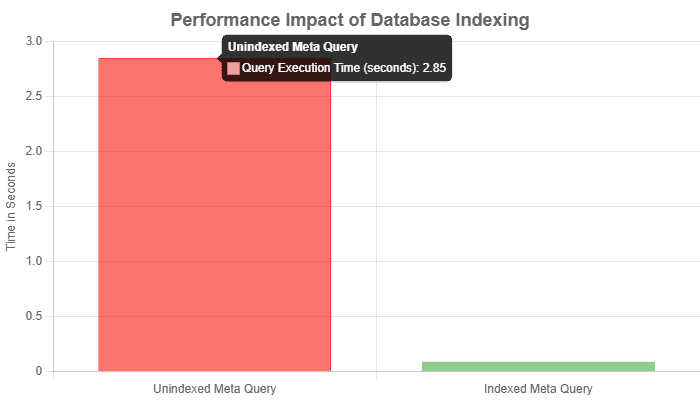
Illustrative chart showing query execution time reduction after adding a database index.
Masterful WP_Query Best Practices
How you write your queries in your theme or plugin code has a massive impact. Here are the essential best practices for using WP_Query in 2025.
1. Avoid SQL_CALC_FOUND_ROWS When Possible
By default, WP_Query includes the SQL_CALC_FOUND_ROWS modifier in its queries. This tells MySQL to count the total number of rows that match the query, even with a LIMIT clause, which is necessary for pagination. However, on sites with large datasets, this counting operation can be extremely slow. If you are not building pagination for your query, you should always disable it.
$args = [
    'post_type' => 'product',
    'posts_per_page' => 10,
    'no_found_rows' => true, // This is the key!
];
$query = new WP_Query( $args );
2. Use Taxonomies Over Meta Queries for Filtering
This is a critical architectural decision. If you need to frequently filter posts by a particular attribute (e.g., “color” for a product), do not store it in a custom meta field. Use a custom taxonomy instead. Taxonomies are designed and indexed specifically for efficient filtering and grouping. A query filtering by taxonomy (`tax_query`) will almost always be significantly faster than an equivalent `meta_query`. (Advanced Custom Fields, 2025).
3. Be Specific: Select Only the Fields You Need
If you only need the IDs of the posts (for example, to pass to another function), don’t fetch the entire post object for every result. This reduces the amount of data transferred from MySQL to PHP, thereby lowering memory usage.
$args = [
    'post_type' => 'event',
    'posts_per_page' => -1,
    'fields' => 'ids', // Fetch only post IDs
];
$post_ids = new WP_Query( $args );
4. Avoid Inefficient Comparison Operators
Certain operators in meta_query are inherently slow because they prevent MySQL from using an index effectively. Avoid these whenever possible:
- ‘compare’ => ‘LIKE’ with a leading wildcard (e.g., ‘value’ => ‘%keyword’). This forces a full table scan.
- ‘compare’ => ‘!=”NOT IN’. These are much less efficient than positive comparisons like ‘=’ or ‘IN’
Step 5: The Critical WP Optimize Table
The wp_options table contains a column named autoload. Data in rows where this is set to ‘yes’ is loaded into memory on every single page request across your entire site. This is a primary cause of high TTFB and server strain.
The 800KB Rule
As a best practice, keep your total autoloaded data size below 800 KB. Exceeding this limit can lead to significant performance degradation, especially on sites with high traffic volumes. (WP Engine).
You can find your most extensive autoloaded options with the following SQL query:
SELECT option_name, LENGTH(option_value) AS option_value_length
FROM wp_options
WHERE autoload = 'yes'
ORDER BY option_value_length DESC
LIMIT 20;
This will show you the top 20 most extensive autoloaded options. Review this list. If you see extensive options from old plugins or for data that isn’t needed on every page, you can change their autoload value from ‘yes’ to ‘no’ directly in phpMyAdmin. This simple change can provide a massive and immediate performance boost.
Part 4: Server-Level Tuning: Configuring MySQL/MariaDB
For users on VPS, cloud, or dedicated servers, optimizing the database doesn’t stop at WordPress. You can achieve significant performance gains by tuning the MySQL or MariaDB server configuration itself. This section is for advanced users who have root access to their server.
Disclaimer: Modifying your server’s configuration file can break your database if done incorrectly. Proceed with caution, change one setting at a time, and monitor the results. Always back up the configuration file before editing.
Locating Your Configuration File
The main configuration file for MySQL/MariaDB is typically named my.cnf. Its location can vary by operating system, but common locations include /etc/my.cnf, /etc/mysql/my.cnf, or within a directory like /etc/mysql/conf.d/. (LinuxBlog.io, 2025).
Key Configuration Variables for 2025
Tuning MySQL involves adjusting variables that control memory allocation, I/O operations, and caching. Here are the most critical settings for a WordPress environment.
innodb_buffer_pool_size
This is the most critical setting for any site using the InnoDB storage engine (the WordPress default). The buffer pool is an area in RAM where InnoDB caches table and index data. A larger buffer pool means more data can be served from fast memory instead of slow disk, dramatically reducing I/O and speeding up queries. (InMotion Hosting, 2025).
- Recommendation: On a dedicated database server, set this to 70-80% of the total available RAM. If your web server and database are on the same machine, you must leave enough RAM for the OS, web server, and PHP processes.
| Server RAM | Recommended innodb_buffer_pool_size |
|---|---|
| 2 GB | 1G |
| 4 GB | 2G – 3G |
| 8 GB | 5G – 6G |
| 16 GB | 12G – 13G |
innodb_redo_log_capacity (MySQL 8.0.30+ / MariaDB 10.11+)
This setting replaces the older innodb_log_file_size and innodb_log_files_in_group. The redo log is crucial for write performance and crash recovery. A larger redo log capacity can improve performance for write-heavy workloads by reducing the frequency of flushing data to disk. A good starting point is 256 MB or 512 MB, but this can be adjusted based on the workload.
The Myth of the Query Cache
For years, tuning the query_cache_type and query_cache_size was a standard optimization practice. This is no longer the case. The query cache was found to be a performance bottleneck in many modern workloads, suffering from contention issues on multi-core CPUs. (Delicious Brains, 2025).
- It is deprecated as of MySQL 5.7.20.
- It is completely removed in MySQL 8.0.
For 2025, you should ensure the query cache is disabled (`query_cache_type = 0`, `query_cache_size = 0`) and use a modern Object Caching solution instead (see Part 5).
max_connections
This setting determines the maximum number of simultaneous connections the server will allow. While it might seem tempting to set this high, each connection consumes RAM. Setting it too high can lead to memory exhaustion. The default is often 151. You should monitor your server’s actual peak connection count and set this to a value slightly above that peak, leaving a small buffer.
Tools for Intelligent Tuning
Manually tuning these variables can be a complex process. Fortunately, some scripts can analyze your running server and provide intelligent recommendations based on its actual workload.
- MySQLTuner: A popular Perl script that analyzes your server’s statistics and provides recommendations for improving performance and stability.
- Percona Monitoring and Management (PMM): A powerful, open-source platform for managing and monitoring MySQL/MariaDB performance. It provides in-depth WordPress dashboards and insights that go far beyond simple scripts. (Belov Digital Agency).
The Imperative to Upgrade
Running an outdated version of MySQL or MariaDB is a significant security and performance risk. As of late 2023, MySQL 5.7 reached its End of Life (EOL), meaning it no longer receives security patches. (WP Engine, 2023).
Upgrading to a modern version like MySQL 8.0+ or a recent MariaDB release (e.g., 10.6+) provides:
- Vastly Improved Performance: Newer versions have significant optimizations to the query planner, InnoDB engine, and concurrency handling.
- Enhanced Security: Modern authentication methods, password policies, and ongoing security support.
- New SQL Features: Access to features like Window Functions and Common Table Expressions (CTEs) that can simplify complex queries.
If your site is still on an old database version, planning an upgrade should be your top priority.
Part 5: WordPress-Specific Caching & Advanced Architecture
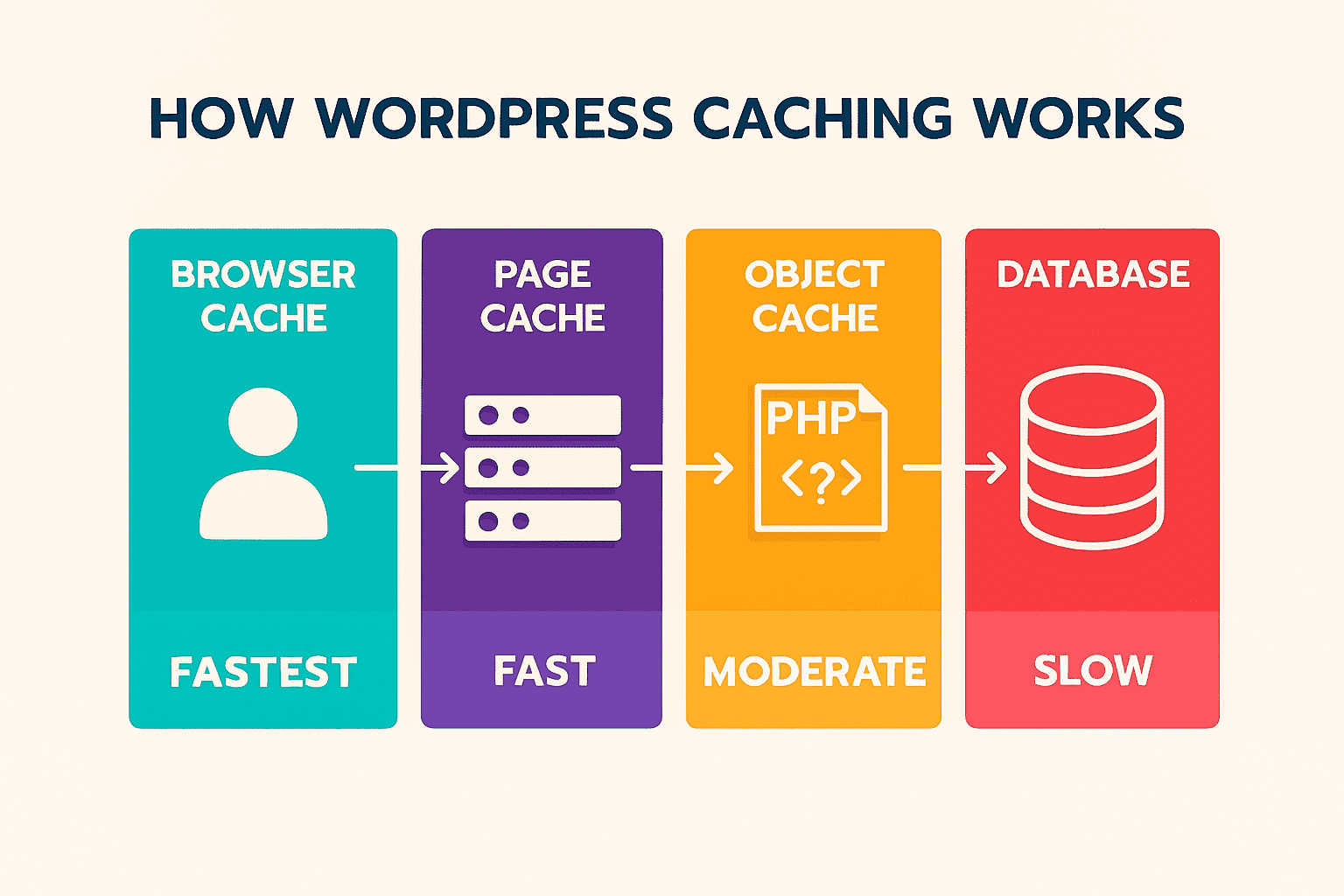
The final layer of optimization involves bridging the gap between your WordPress application and the database. By implementing intelligent caching and, for larger sites, more advanced architectures, you can dramatically reduce the database’s workload and achieve lightning-fast performance.
Object Caching: The Modern Query Cache
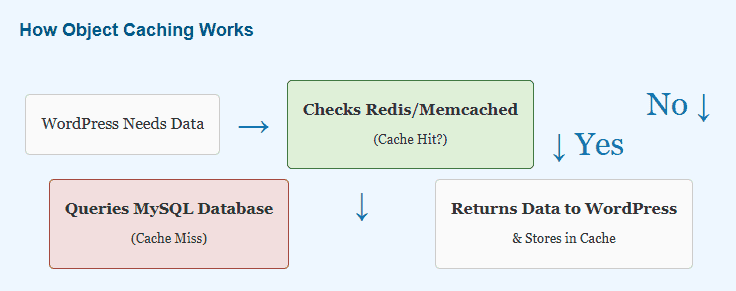
With the deprecation of MySQL’s native query cache, the modern solution for caching query results is a persistent object cache. WordPress has a built-in object cache, but it’s non-persistent, meaning it only holds data for a single page load. A persistent object cache saves this data in fast, dedicated memory (RAM) across multiple page loads.
The two leading technologies for this are Redis and Memcached. They are in-memory key-value stores that sit between WordPress and your MySQL database. (InMotion Hosting, 2025).
When WordPress requests data (e.g., site options or the result of a complex WP_Query), it first checks the object cache. If the data is found (a “cache hit”), it’s returned instantly from RAM, and no database query is ever made. If the data is not found (a “cache miss”), WordPress queries the database as usual, then stores the result in the object cache for the subsequent request. This can reduce database load by up to 95% on dynamic sites. (WP Farm).
To implement this, your hosting environment must have Redis or Memcached installed. You can then use a plugin like Redis Object Cache or integrate it through a comprehensive caching plugin, such as W3 Total Cache, to connect WordPress to the caching server.
Proactive Bloat Prevention in wp-config.php
You can prevent one of the most significant sources of database bloat—excessive revisions—before it even starts by adding a simple constant to your wp-config.php file.
/**
 * Limit the number of post revisions to a reasonable number.
 * Set to 'false' to disable revisions completely.
 */
define('WP_POST_REVISIONS', 3);
Setting this to a low number, such as 3, or even false if you don’t need revisions at all, is a robust proactive measure that keeps your wp_posts table lean from day one. (WP Staging).
Scaling for High Traffic: A Glimpse into Advanced Architectures
For enterprise-level websites, e-commerce stores with massive traffic, or significant publications, a single server for both the web application and database may not be enough. While these topics are complex, it’s helpful to be aware of the next steps in scaling.
- Dedicated Database Server: The first step in scaling is to move your MySQL database to its own dedicated server. This isolates resources, so a spike in web traffic doesn’t starve the database of CPU or RAM, and vice versa.
- Read/Write Replicas: Most WordPress sites have far more read operations (viewing pages) than write operations (publishing content, commenting). A replication setup uses a primary database for all writes and one or more replica databases for all reads. WordPress can be configured to direct queries accordingly, distributing the load significantly.
- Database Sharding: This is the most complex strategy, typically reserved for massive-scale applications. Sharding involves horizontally partitioning your database across multiple servers. For example, users A-M might be on one database server, and users N-Z on another. This is rarely necessary for even huge WordPress sites and requires significant custom development. (Kinsta, 2025).
Conclusion: A Proactive Approach to Database Health
WordPress MySQL optimization is not a dark art reserved for elite database administrators. It is a systematic, multi-layered discipline that yields some of the most significant performance gains possible for your website. By moving from foundational cleanup to advanced query tuning, server configuration, and intelligent caching, you can transform your database from a performance bottleneck into a powerful, responsive engine.
We’ve journeyed through a comprehensive framework:
- Foundational Cleanup: The essential, regular maintenance of clearing out revisions, transients, and orphaned data is your first line of defense against bloat.
- Code-Level Optimization: Fixing inefficient queries by adding strategic indexes and adhering to WP_Query best practices addresses the root cause of slowness.
- Infrastructure Tuning: For those with access, configuring your MySQL/MariaDB server settings unlocks the full potential of your hardware.
- Architectural Caching: Implementing a persistent object cache, such as Redis, is the modern standard for minimizing database load on dynamic websites.
Ultimately, the key takeaway is this: WordPress MySQL optimization is not a one-time fix but an ongoing process of maintenance and vigilance. A healthy database is a fast database, and a fast database is the bedrock of a successful, high-ranking website that delights users and drives conversions.
Frequently Asked Questions (FAQs)
How do I optimize my WordPress MySQL database?
Optimizing a WordPress MySQL database involves a multi-layered approach: 1. Regular Cleanup: Delete old revisions, transients, and spam comments using plugins like WP-Optimize. 2. Query Optimization: Use tools like Query Monitor to find and fix slow queries, often by adding database indexes. 3. Server Tuning: Adjust your my.cnf file settings, like innodb_buffer_pool_size, for better performance. 4. Caching: Implement object caching with Redis or Memcached to reduce database load.
What is the best WordPress plugin for database optimization?
For all-in-one cleanup and optimization, WP-Optimize is a highly recommended and popular choice due to its ease of use and comprehensive features. For more detailed control over what gets deleted, especially orphaned data, Advanced Database Cleaner is an excellent alternative. For developers who need to identify slow code, Query Monitor is an indispensable diagnostic tool.
How do I clean up my WordPress database?
The safest and easiest way is to use a dedicated plugin, such as WP-Optimize or WP-Sweep. These tools enable you to remove unnecessary data, such as old revisions, auto-drafts, spam/trashed comments, and expired transients, with just a few clicks. For more advanced users, WP-CLI commands or direct SQL queries can also be used, but always after taking a full backup.
How do I fix slow SQL queries in WordPress?
To fix slow SQL queries, first identify them using the Query Monitor plugin. Then, use the MySQL EXPLAIN command in a tool like phpMyAdmin to analyze how the query is running. The most common fix is to add a database index to the columns used in the WHERE or JOIN clauses of the query, especially on the wp_postmeta and wp_posts tables.
Does optimizing the database improve WordPress performance?
Yes, absolutely. A well-optimized database is one of the most effective ways to speed up a WordPress site. It directly improves server response time (Time to First Byte, or TTFB), a key metric for both user experience and SEO rankings. A clean, efficient database ensures faster response times, making your entire site feel quicker.
Is MariaDB faster than MySQL for WordPress?
Generally, yes. Numerous benchmarks and community experiences indicate that MariaDB often provides better performance for typical WordPress workloads, particularly with complex queries and data retrieval. As a seamless “drop-in” replacement for MySQL, it is a highly recommended choice if your hosting provider offers it.
How do I reduce the size of my WordPress database?
You can significantly reduce your database size by regularly cleaning out unnecessary data. The main culprits are post revisions, spam comments, old transients, and orphaned metadata from uninstalled plugins. Using a plugin like WP-Optimize to perform these cleanups and then running the “Optimize WordPress Tables” command will reclaim fragmented space and shrink the overall file size of your database.
What is autoloaded data in WordPress, and how do I optimize it?
Autoloaded data is information stored in the wp_options table that WordPress loads on every single page of your site. It’s meant for critical settings. However, many plugins store large amounts of data there, which can bloat the autoload process and slow down your site. You can optimize it by using an SQL query to identify the most extensive autoloaded options and, for non-essential ones, changing their autoload status from ‘yes’ to ‘no’ in your database.
Take Action Today
Don’t let a slow database hold your site back. Start with the foundational cleanup tasks today using a trusted tool like WP-Optimize to see an immediate improvement. For more complex issues, deep query analysis, or server tuning, consider consulting a vetted WordPress performance expert to unlock your site’s true potential and ensure it’s built to scale for the future.
Finalizing your WordPress performance requires laser focus on the MySQL database, the actual engine of your WordPress site. The core of WordPress database optimization is eliminating database bloat, which is the accumulation of unnecessary data like post revisions, spam comments, unattached media files, and orphaned data from uninstalled WordPress plugins. This database cleanup is crucial for improving performance and reducing page loading times.
You can achieve optimal performance by using a WordPress plugin like WP Optimize or Advanced Database Cleaner from the WordPress dashboard, which features SQL statements or WP-CLI commands to optimize database tables and remove outdated data. For developers, an invaluable tool is the ability to directly write queries to analyze and fix slow queries that impact query performance using the SQL statement OPTIMIZE TABLE via the databases tab or the structure tab in your database management systems. This intensive optimization process reduces the database size and, along with a powerful caching solution (such as those offered by caching plugins), significantly helps to reduce server load and minimize the impact on server resources. For high-traffic websites, moving the WordPress database to external servers or multiple servers from a single hosting provider provides superior database performance. Regularly checking the default tables and custom tables created by plugins for autoloaded data and unused tables (and applying the optimize table option from a dropdown menu if using a tool like phpMyAdmin) is non-negotiable for the long-term health of your production site, ensuring every aspect of how WordPress stores its WordPress posts and media files is optimized.

With over 27 years of hands-on SEO expertise, starting from my early days as a CFO. Quitting that job to build a top-ranked web hosting business in 1995, I’ve mastered WordPress optimization as a precise engineering discipline. Through extensive research, high-level consulting, and developing a WordPress site that achieved over a thousand organic Google rankings—culminating in a six-figure sale—I’ve decoded Google’s algorithm over 27 years to develop wordpress engineering that transforms underperforming WordPress sites into authoritative powerhouses. Business owners frustrated by stagnant traffic, low visibility, and missed opportunities find relief as I help them deliver measurable ROI through higher rankings, increased leads, and sustainable growth. As owner of dominant city-based SEO platforms in major U.S. markets, I outperform industry gurus, empowering entrepreneurs, local businesses, agencies, and marketers via my WordPress Optimization services at wordpressoptimization.com to unlock their site’s full potential.